¶ Paypal Credentials
streto2021
¶ Paypal Dashboard
Here we can enable/disable features, webhooks and access to account settings and get secret. Login in dashboard enables to get credentials manually or see next section.
User: [email protected]
Pass: streto2021
¶ Sandbox API REST Credentials
Created from Streto dev app.
¶ Sandbox account
¶ Business account
User: [email protected]
Pass: V3G3n>C9
¶ Personal account
User: [email protected]
Pass: 6Jji9/.E
¶ Client ID
AVpXSkSH2pUSYbvox4fU2W2MdGPcHjzpK9urfu1iBwuCoiRx5tX7nsiDnlWMLU1fjdmYJlFN_Vq7SFBC
¶ How the buttons work
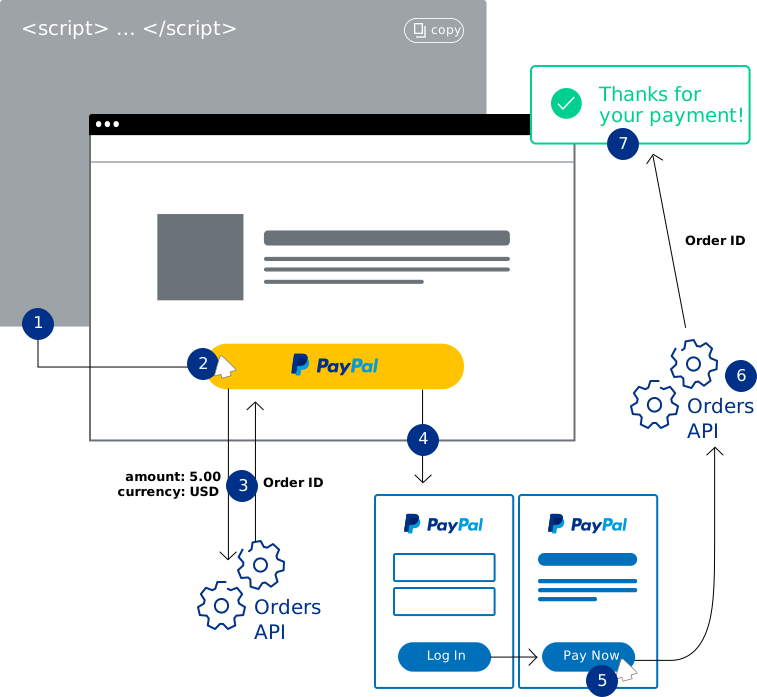
- You add the PayPal Smart Payment Buttons to your web page.
- Your buyer clicks the button.
- The button calls PayPal Orders API to set up a transaction.
- The button launches the PayPal Checkout experience.
- The buyer approves the payment.
- The button calls PayPal Orders API to finalize the transaction.
- You show a confirmation to your buyer.
¶ Integration
¶ Set Up Your Development Environment
- Log in to the Developer Dashboard with your PayPal account.
- Under the DASHBOARD menu, select My Apps & Credentials.
- Make sure you're on the Sandbox tab to get the API credentials you'll use while you're developing code.
- After you test and before you go live, switch to the Live tab to get live credentials.
- Under the App Name column, select streto-seller-app.
¶ Add the PayPal JavaScript SDK to your web page
- Render the Smart Payment Buttons
<body>
  <script
    src="https://www.paypal.com/sdk/js?client-id=YOUR_CLIENT_ID"> // Required. Replace YOUR_CLIENT_ID with your sandbox client ID.
  </script>

  <div id="paypal-button-container"></div>

  <script>
    paypal.Buttons().render('#paypal-button-container');
    // This function displays Smart Payment Buttons on your web page.
  </script>
</body>
- Set up the transaction
Implement the createOrder function, which is called when the buyer clicks the PayPal button
<script>
  paypal.Buttons({
    createOrder: function(data, actions) {
      // This function sets up the details of the transaction, including the amount and line item details.
      return actions.order.create({
        purchase_units: [{
          amount: {
            value: '0.01'
          }
        }]
      });
    }
  }).render('#paypal-button-container');
</script>
- Capture the transaction
Implement the onApprove function, which is called after the buyer approves the transaction on paypal.com
- Full Example
<!DOCTYPE html>
<html lang="en">

<head>
    <!-- Add meta tags for mobile and IE -->
    <meta name="viewport" content="width=device-width, initial-scale=1">
    <meta http-equiv="X-UA-Compatible" content="IE=edge" />
    <title> PayPal Checkout Integration | Client Demo </title>
</head>

<body>
    <!-- Set up a container element for the button -->
    <div id="paypal-button-container"></div>

    <!-- Include the PayPal JavaScript SDK -->
    <script
    	src="https://www.paypal.com/sdk/js?client-id=YOUR_CLIENT_ID"> // Required. Replace YOUR_CLIENT_ID with    	></script>

    <script>
        // Render the PayPal button into #paypal-button-container
        paypal.Buttons({

            // Set up the transaction
            createOrder: function(data, actions) {
                return actions.order.create({
                    purchase_units: [{
                        amount: {
                            value: '88.44'
                        }
                    }]
                });
            },

            // Finalize the transaction
            onApprove: function(data, actions) {
                return actions.order.capture().then(function(orderData) {
                    // Successful capture! For demo purposes:
                    console.log('Capture result', orderData, JSON.stringify(orderData, null, 2));
                    var transaction = orderData.purchase_units[0].payments.captures[0];
                    alert('Transaction '+ transaction.status + ': ' + transaction.id + '\n\nSee console for all available details');

                    // Replace the above to show a success message within this page, e.g.
                    //const element = document.getElementById('paypal-button-container');
                    //element.innerHTML = '';
                    //element.innerHTML = '<h3>Thank you for your payment!</h3>';
                    // Or go to another URL:  actions.redirect('thank_you.html');
                });
            }


        }).render('#paypal-button-container');
    </script>
</body>

</html>
¶ Test Integration
¶ Run test integration
- Copy and paste full example code in to paypal.html
- Replace YOUR_CLIENT_ID with credentials from sandbox app
- Run paypal.html in some web browser
- You can do transactions as paypal user(get personal credentials from developer dashboard) or just with credit card generator
¶ Verify test transactions
- Log in to the sandbox using your sandbox merchant account(business account) to confirm that the funds have been received (minus any processing fees).
- Log in to the sandbox using your sandbox buyer account(personal account) to confirm that the funds have been sent.
More detailed info: https://developer.paypal.com/docs/checkout/integrate/
Demo: https://developer.paypal.com/demo/checkout/#/pattern/client