¶ Feature
 Configure variants generation with list attributes
Configure variants generation with custom option lists
Include and exclude options as desired
Sort option lists
Use attribute options as template
Include and exclude variants as desired
¶ Concepts
- Options Datasource: Any source of options to generate variants. It has a unique code and a title. Implemented options datasources are: Attribute datasource, and Custom List datasource.
¶ Variants Generation Configuration
¶ Adding Configurable Attributes
In order to add a configurable attribute as options datasource, the user starts typing.
Then, a list of suggested (matching) attributes is shown.
At that point, the user is able to select one of the suggestions, or continue typing to narrow the list.
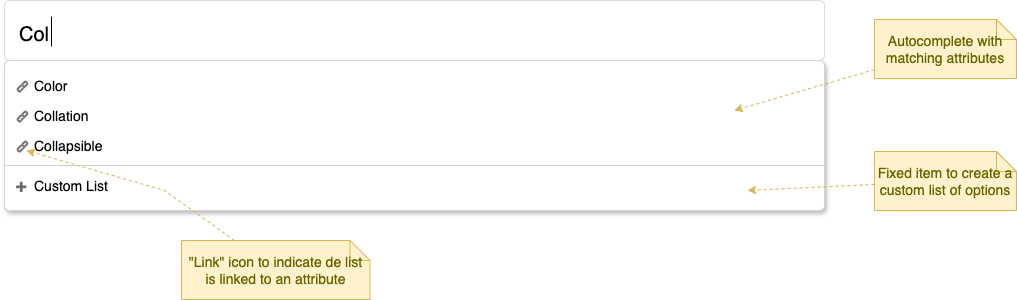
Once selected the desired attribute, it will be added as a new options datasource:
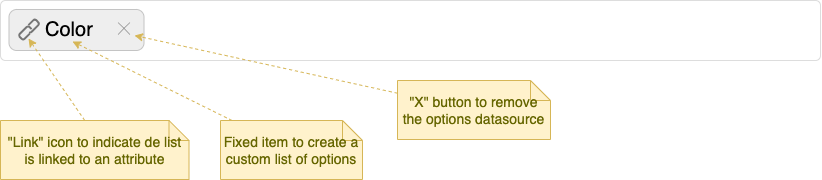
The list of datasources is a multi-select, so many attributes could be added:
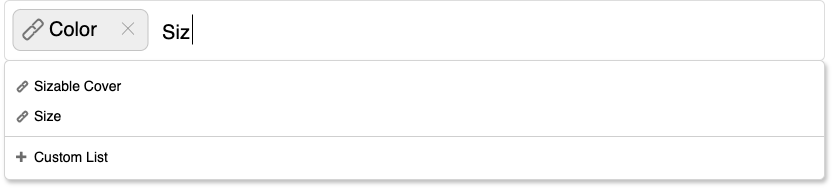
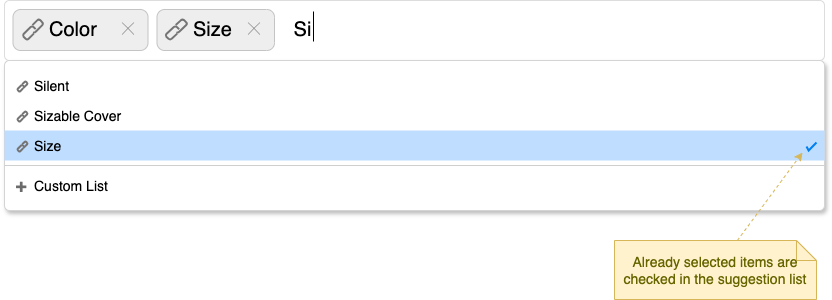
¶ Adding Custom Lists
When the user needs to add a custom list of options as datasource, she/he writes the desired name for the list.
Then selects the fixed option "Custom List". It is possible that some existing attributes match with the written list name, but that's not a problem.

When the "Custom List" option is selected, the new list is created with the given name, and the list editor is dropped automatically for the user to enter the options:
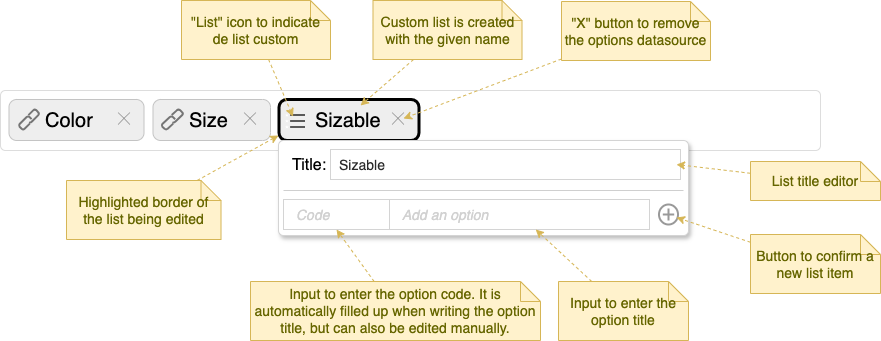
After title and code are completed, the user adds the new option with the "+" button.

When the new item is added, the inputs to add another one are automatically available (emptied).
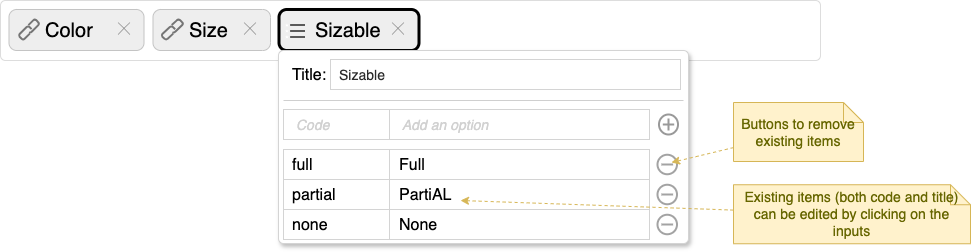
Existing items can be edited (both title and code):
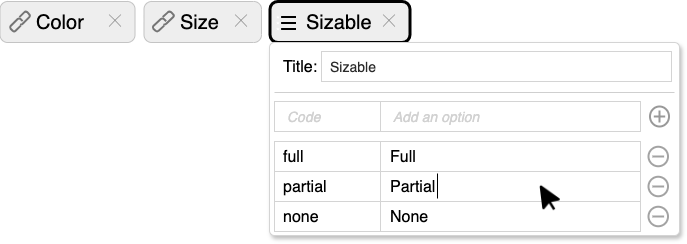
When the user moves the focus to another component outside the list editor, it is closed and the list is kept to store or continue editing.
The user can clicks/taps on the custom list tag to re-open the list editor.
Clicking/tapping on the custom list tag when the list editor is already open, closes the editor.
¶ Excluding Attribute Options
It is possible to exclude some of the attribute options, whe using an attribute options datasource.
To do so, the user clicks/taps on an attribute datasource tag.
That action opens the attribute datasource editor, where the user can uncheck/re-check options to exclude/include them as desired.
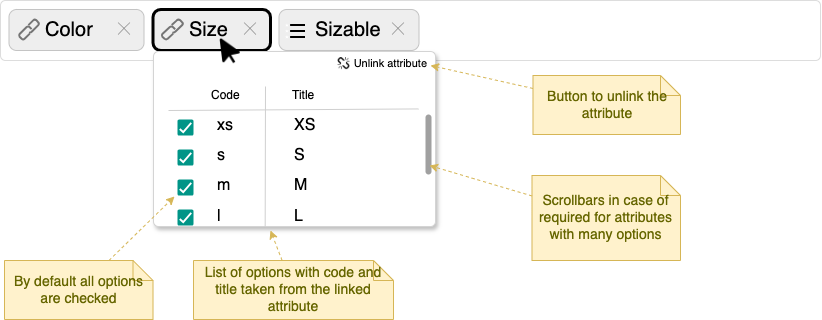
Unchecking options:
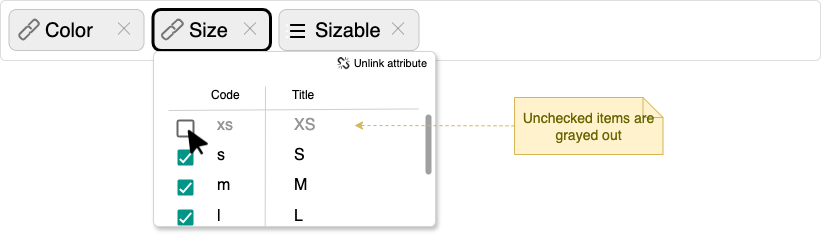
Attribute datasource editor focus and tag hightlighting works with the same logic as for the custom lists.
¶ Using an Attribute Datasource as Template
It is possible to convert an attribute options datasource into a custom list, being able to edit it and customize it affecting only the current product, without modifying the attribute.
This allow the possibility to use attributes as list templates.
To do so, the user clicks/taps on the button to unlink the list from the attribute entity.
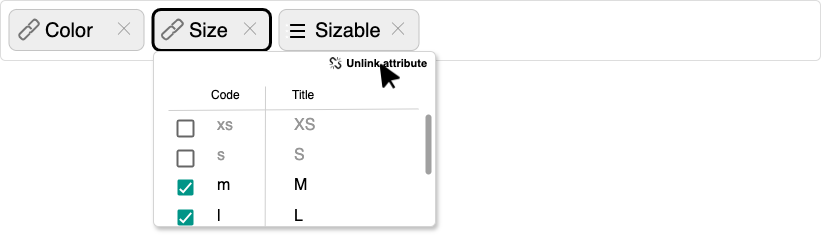
The attribute datasource is converted into a custom list datasource, preserving only the options that was selected.
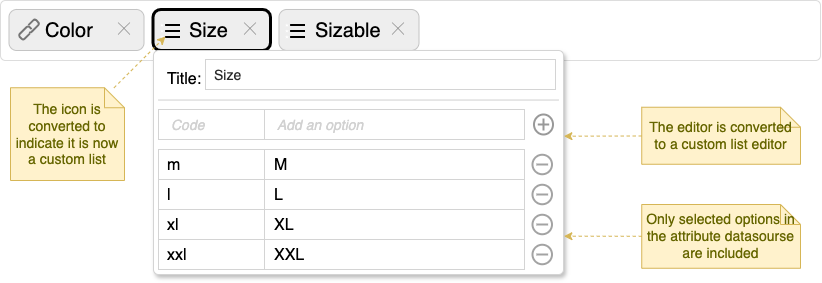
Since the attribute has been unlinked, from now on any modification of it or even its deletion will not affect the list of options in this product.
¶ Customizing Datasource Order
It is possible to sort the datasources by simply dragging the tags, being possible to set any order no matter the types of datasources used.

While dragging, a placeholder shows the new available space for the tag:

Once dropped, the new order is set and the dragged tag comes back to the normal mode.

¶ Variants Inclusion/Exlusion
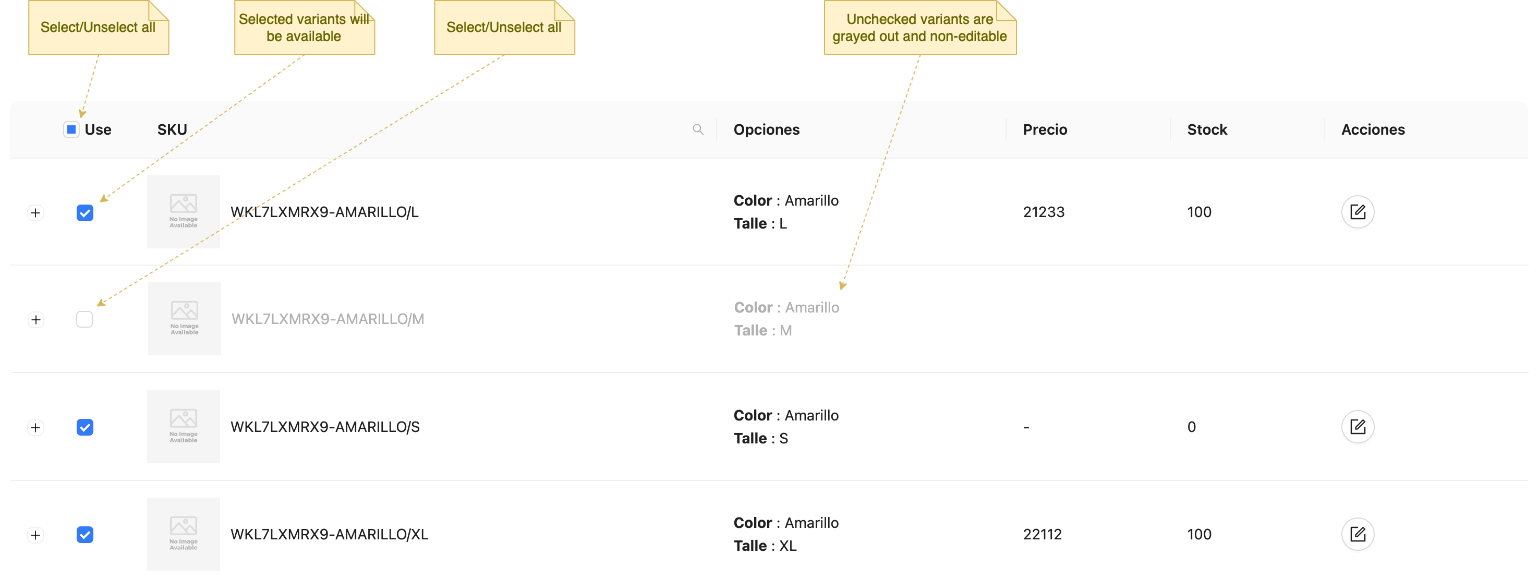
The variants grid includes a checkbox column "Use" to configure which combinations of options are usable variants.
By default all combinations are selected.
The user can uncheck as desired, or even check/uncheck all from the grid header.
Unchecked items are not available for selling.
¶ API Updates
-
System attribute
configurableAttrsis deprecated. It will be available until this feature is complete and data migrated, then it will be removed. -
A new system attribute
variantsGenOptsis created to keep all the variants generation information.
[
  {
    "type": "list", // Custom list created using the "Size" attribute as template.
    "title": "Size", // Title only editable for "list" type.
    "options": {
      "m": "M",
      "l": "L",
      "xl": "XL",
      "xxl": "XXL"
    }
  },
  {
    "type": "attribute", // Linked attribute "Color". Options are taken dynamically from the attribute entity.
    "attributeId": "97ca7972-c2b3-4bdb-8a35-2bb0e199be2c",
    "excludedOpts": ["yellow", "pink"]
  },
  {
    "type": "list",
    "title": "Sizable",
    "options": {
      "full": "Full",
      "partial": "Partial",
      "none": "None"
    }
  },
]
- A new system attribute
excludedVariantsis created to keep the list of variant SKUs that will not be available for using.
["WKL7LXMRX9-AMARILLO/M", "WKL7LXMRX9-AMARILLO/XXL"]
- Variants generation process is updated to take into account this new feature.